Archive for the ‘VMware’ Category
Performance tab "Numbers" demystified – by Erik Zandboer
 January 30th, 2009 |
  Author:
 “CPU ready time? Always use esxtop! The performance tab stinks!” is what I hear all the time. But in reality, they don’t stink, they’re just misunderstood. This edition of my blog will try to clarify this using the famous CPU ready times as an example.
A lot of people have questions about items like CPU ready times. Advice is usually to run esxtop. I have always been a fan of the performance tabs instead. However, the numbers presented there are very often unclear to people. The same goes for disk IOps. In fact any measured value with a “number” as the unit appears to suffer from this. No need – The numbers are valid, you just should know how to interpret them. Added bonus is off course, you get an insight through time on your precious CPU ready times, instead of a quick look in esxtop. If you tune the VirtualCenter settings right, you can even see CPU ready times on your VM yesterday or the day before!
Comparing esxtop to performance in VI client
When you compare the values in both esxtop and the performance monitor, you could notice a clear difference in these values. While a VM has a %ready in esxtop of about 1.0%, in the performance graph (real-time view) it is all of a sudden a number around 200 ms?!? As strange as this sounds – the number is correct. The secret lies in the percentage versus the number of milliseconds. It is the same thing, but shown differently.
The magic word: sampletime
When you start to think of it: The number presented in the performance tab is in the unit of milliseconds. So basically it is the number of milliseconds the CPU has been “ready” as opposed to the percentage ready in esxtop. But how many milliseconds out of how much time you might wonder? That is where the magic word comes in – sampletime!
Sampletime is basically the time between two samples. As you might know, the sampletime in the real-time view of the performance tab is 20 seconds (check upper left of the window):

Sampletime - yes! it is 20 seconds
So VMware could have taken the percentage ready from esxtop, and display these instant values to form this graph. In reality however it is even nicer: VMware is able to measure the number of milliseconds ready-time of the CPU inbetween these two samples! Once you grasp this, it all becomes clear – So if you see in real-time view a value of 200 ms, in esxtop-like representation you would have 200/20 = 10 milliseconds per second, or 0.01 seconds per second, which is dead-on 1% (how DO I manage 😉 )
Changing the statistics level in VirtualCenter
So now we have proven that the numbers can actually be matched – time for the nice bonus. If you login to VirtualCenter via the VI client, you can edit the settings of VirtualCenter by clicking on the “administration” drop-down menu, and selecting “VirtualCenter Management Server Configuration” (whoever came up with that monstrous name!). In this screen you’ll see an item called “statistics”. There you can tune a see more statistics over more time:
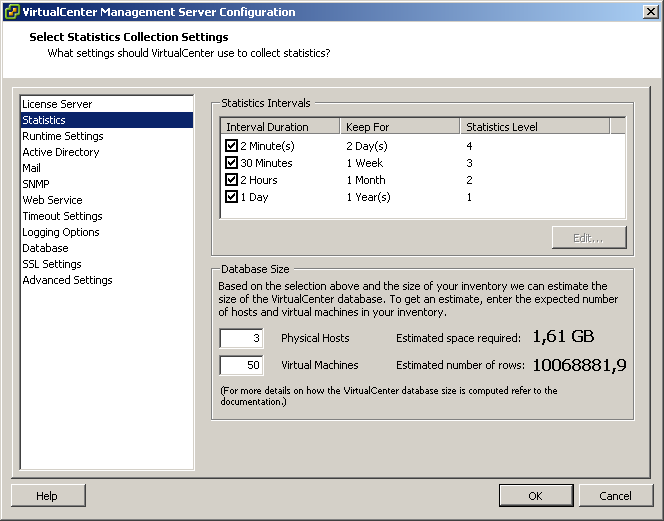
Altering statistics levels in VirtualCenter
In this example I have increased the level of statistics, and I have also changed the first interval duration to two minutes. In this setup, I can see CPU ready times of all my VMs for one entire week now:

CPU ready times for an entire week
Take care, your database will grow much larger, and VMware does not encourage you to keep this level of statistics on for an extended period of time – although I have been running these levels for months now without issues on a small (2 ESX server) environment. My database size is now around 1.4GB – Not alarming although the size grows exponentially with the number of ESX hosts you have.
When you look close into the graph (an almost idle webserver which runs virusscan at 5AM), you’ll notice that CPU ready times boost up to around 50.000 milliseconds. Sounds alarming, right? But do not forget, in this case I am looking at a weekly graph, which is sampling at a 30 minute sample rate. So I should do my calculation once again: 30 minutes = 30*60 = 1800 seconds (=sampletime). So 50000 / 1800 = 27.8 milliseconds per seconds, or 0.0278 seconds per second. So CPU ready is peaking up to just below 3%, which is acceptable (usually below 10% is considered ok). Not bad at all! But it would have been hard to find using esxtop though (I hate getting up early).
Any number
The calculations I have done are valid for all measured values that have a “numbers” unit within the Performance tab. So it also works for disk operations (like “Disk read requests”) and networking (like “Network packets received”).
So if you looking for esxtop output through time in a graph – Take a second look at your Performance tabs!
VMware Infrastructure Resource Settings Sagas – by Erik Zandboer
One of the most abused items in VMware ESX server are probably the resource settings. I have heard most wild fairytale stories and sagas about what to do and what not to do, and have seen numerous issues around bad performance in conjunction with wild resource settings.
Resource Settings abuse
I have heard of VMware “experts” (even official trainers) who state that “one should put both memory and CPU limits and reservations on EVERY Virtual Machine. Anyone who claims it is better to leave things at default does not understand virtualization”. Technicians who followed that way of working, got themselves into the weirdest issues. HA not functioning, VMs unwilling to start, VMs freezing up while others continue to run OK, etc etc. No surprise in my opinion.
What I have always seen, learned and done is “don’t touch resource settings until you really need them”. That has proven to both work and scale. Don’t touch resource settings unless you know exactly what you are doing.
“There’s two sides to every Schwartz”
Resources basically fall apart in two sections: there are shares on one side, and limits/reservations on the other. Limits and reservations are relatively easy to understand. A VM (or when using pools a group of VMs) gets resources reserved, and can also be limited in resources. Shares are more complex to understand: shares cut in ONLY if a physical ESX server runs out of resources. Who gets the remaining resources is determined by the shares mechanism.
Limits and reservations
Be very careful with these. There are little real use cases for both on a VM level. Be sure to know what you are doing before you start configuring these. These are the four cases:
Limit VM memory
In my opinion should this be done by setting the correct amount of memory in the VM itself. Not having to reboot a machine to change the setting is in my opinion no excuse. Memory ballooning will occur by default if this limit lies below the assigned memory. Use cases: political/requirements-fooling (“client thinks he gets 2GB, but in fact he gets no more than 1GB”). Some claim some OSses run better when they see 4GB, even if they get only 1GB in real life (never got that one confirmed though). More useful on resource pools (financial: “you get what you pay for”).
Reserve VM memory
In this situation ESX will reserve a certain amount of memory for the
VM, whether it is used or not. This means that you basically render physical memory unused, which is kind of against the idea of virtualisation. Use cases: administrative: guaranteeing memory is available for the VM (although I think that should not be done at this level). In my opinion it is better to rely on shares and ballooning to get more memory if needed (dynamic versus static).
Limit VM CPU
Cutting down the performance of a VM. This one can actually be effective: Sometimes a VM can use up 100% CPU all of a sudden (scheduled tasks for example), where run time is of little issue. If you have 10 of these VMs, they can put a serious drain on your ESX resources. Limiting those VMs in cycles can be effective (because you simply cannot assign a half vCPU so to speak). Another great example is a DOS based server: DOS has no idle loop, so these VMs draw 100% CPU cycles 24/7. Limiting the CPU back to lets say 150MHz helps here.
Reserve VM CPU
For this one I have never ever seen a use case. You might decide to reserve CPU cycles, but then again, ESX can give or take CPU cycles as it wishes, so I would always rely on the shares mechanism here. Some reserve CPU cycles by default for every VM, but WHY? I never got a good reason. In my opinion: Don’t ever.
“Expandable” = “Expendable” ?
On top of the limits and reservations, you get an “expandable” checkbox for free in resource pools. Even worse, it is “on” by default. Let me get this straight: First I limit a resource, and then I allow the boundary to be crossed? Ok, this can be valid in some cases, but I would not do that by default. The reason for this default setting might be, that VMware does not want all the support calls from people who set reservations (and do not really know what they are doing), and then end up not being able to start or add their VMs anymore…
The shares mechanism
It is most important to understand how shares work, whether you use them or not. This is because they are always set to some value, even though you might leave them all at the default. And that is where things go wrong: VMwares understanding of what the settings should be by default changed through time.
The question around defaults is: “how should defaults be determined” ? Initially, VMware got it right. CPU shares of a VM grew as the number of vCPUs grew, memory shares grew as the VMs memory grew. Later on (somewhere in ESX 3.0), VMware seemed to have forgotten this, and simply created VMs with equal shares, not taking into account the number of vCPUs or memory assigned to a VM.
The reason for adjusting the shares to the size of the VM is quite obvious: Think of two VMs, one is an old Windows 2000 server with 384MB of memory, the other is a 64bit Windows 2003 VM with 8GB of memory. Now lets say these VMs coexists on a single physical ESX server, and the ESX server runs out of physical memory, but both VMs need more memory. The shares mechanism cuts in. Assume there is 200MB of physical memory left to give. When shares are set equally, both machines will get 100MB. This is pretty significant for the W2K server, but not very much for the W2K3 server. This pleads for the strategy “more memory = more shares”. The same goes for the number of vCPUs, “more vCPUs = more shares”. Add priorities in the mix (“production” versus “test and dev”) and you have a nice shares-value-cocktail (we could name this SVC 😉 ).
Guess the correct default and win!
Under ESX 2.5, shares where created “correctly” (sized to VM size). With the coming of ESX 3, at some point VMware “forgot” how to really configure resource settings by default. Later on (somewhere along 3.5), things were fixed again and VMware created once again correct defaults for resource settings. This can result in faulty resource settings, especially if you upgraded your environment from ESX3.0 to ESX3.5. I have seen production environments, where some VMs had a 1000 memory shares (used to be the default for a “normal” shares value once), but some other VMs that where created in a later version of ESX got a memory share value of 10240 (10 times the number of MBs given to a VM, where 10 stands for a “normal” shares level). The result: Not much, right until the ESX hosts runs out of physical memory. As soon as that happens, the 10240-shares VM runs normally, the other (1000-shares VM) simply comes to an almost complete standstill. Ever seen this issue? Then go to your resource pool, and check the tab “resource allocation”. The “percentage shares” column just might show you something obviously wrong: One VM gets 99%, the rest 0% (in real life a part of the one remaining percent which evens out to 0%). OUCH!
Given any VMware Infrastructure environment, if the VMware administrators have never looked into the settings, I would say there is about a 25 percent change that resource settings are mismatched in some degree.
Moral of this blog?
Check your resource settings. Even out these settings throughout your VMs, change resources to match the sizing of the VM where necessary. Most important: Make sure the shares values match. Two VMs with 100 shares is ok, two VMs with 10000 shares is ok. Avoid the situation where one has 100, the other has 10000 shares (unless you compare a DOS machine to a windows2008 SQL server maybe 😉 ). Do never use resource settings just “because you can”, but make sure you have a solid idea behind the WHY whenever you change a resource setting other than the (correct) default should be.
Most important: If you have no issues and/or have no clue, do not mess with custom resource settings. Most ESX environments run best when ESX gets to decide! If you must, stick to resource pool settings, and stay away from custom individual VM resource settings.
 Posted in VMware |
  Tags: ESX, pools, resource pools, resource settings, resources, VMware |
  3 Comments »


 LinkedIn
 Twitter