Archive for the ‘VMware’ Category
vscsiStats in 3D part 2: VMs fighting over IOPS
 November 1st, 2010 |
  Author:
 vscsiStats is definitely a cool tool. Now that the 2D barrier was broken in vscsiStats into the third dimension: Surface charts! it is time to move on to the next level: Multiple VMs fighting for IOPS!
Update: Build your own 3D graphs! Check out vscsiStats 3D surface graph part 3: Build your own!
I figured the vscsiStats would be most interesting in a use case where two VMs are battling for IOPS from the same RAID set. A single VM would have to force I/O on a RAID set. Wouldn’t it be cool to start a second VM on the same RAID set later on and to see what happens in the 3D world? In this blogpost I’m going to do just that!
TO THE LAB!
The setup is simple: Take a LUN on a RAID5 array of (4+1) SATA72K spindles, take two (Windows 2003 server) VMs which have a datadisk on this LUN. Now install iometer on both VMs. These two instances of iometer will be used to make both VMs fight for IOPS.
The iometer load is varied between measurements, but globally it emulates a server load (random 4K reads, random 4K writes, some sequential 64K reads).
First only a single VM runs the iometer load. At 1/3rd of the sample-run, the second VM is started to produce the same IO pattern. At 2/3rd, the first VM stops its IO pattern load. This results in the following graph:

 Posted in Storage, VMware |
  Tags: ESX, IO, IOPS, random, ROPS, sequential, surface graphs, VMware, vscsistats, vSphere, WOPS |
  5 Comments »
ESXi and EMC CLARiiON registration issue
A collegue of mine, John Grinwis, pointed out a bug within a combination of ESXi, host profiles and an EMC CLARiiON: At some point the ESXi nodes swap their VMkernel ports and the CLARiiON then proceeds to register the wrong network as the management network
UPDATE: There now is a workaround available. Please visit Workaround: ESXi and EMC CLARiiON registration issue
Read the rest of this entry »
Posted in Storage, VMware |
Tags: Clariion, EMC, ESXi, VMkernel, VMware, wrong VMK, wrong VMkernel |
6 Comments »
vscsiStats into the third dimension: Surface charts!
How could I ever have missed it… vscsiStats. A great tool within vSphere which enables you to see VM disk statistics. And not only latency and number of IOPs… But actually very cool stuff like blocksizes, seekdistances and so on! This information in not to be found in esxtop or vCenter performance graphs… So we have to rely on once more on the console…
UPDATE: Available now: vscsiStats in 3D part 2: VMs fighting over IOPS !
UPDATE2: Build your own 3D graphs! Check out vscsiStats 3D surface graph part 3: Build your own! Read the rest of this entry »
Posted in Storage, VMware |
Tags: disk I/O, latency, LBN, LBNs, seek distance, VMware, vscsistats, vSphere |
27 Comments »
Quick dive: ESX and maximum snapshot sizes
Even today I still encounter discussions about snapshots and their maximum size. It is somewhat too simple a test for my taste, but I’m posting it anyway so hopefully I don’t have to repeat this “yes/no”-discussion every time 🙂
The steps to take are easy:
- – Take any running VM;
- – Add an additional disk (not in independent mode);
- – Fill this disk with data;
- – Check out the snapshot size;
- – Delete all data from the disk;
- – Fill the disk once again with different data just to be sure;
- – Check the snapshot size again.
So here we go:
Create an additional disk of 1GB, and we see this:
-rw------- 1 root root  65K Oct 18 09:58 Testdisk-ctk.vmdk

-rw------- 1 root root 1.0G Oct 18 09:28 Testdisk-flat.vmdk

-rw------- 1 root root  527 Oct 18 09:56 Testdisk.vmdk
As you can see, I created a Testdisk of 1GB. The Testdisk-ctk.vmdk file comes from Changed Block Tracking, something I have enabled in my testlab for my PHD Virtual Backup (formerly esXpress) testing.
Now we take a snapshot:
-rw------- 1 root root  65K Oct 18 09:59 Testdisk-000001-ctk.vmdk

-rw------- 1 root root 4.0K Oct 18 09:59 Testdisk-000001-delta.vmdk

-rw------- 1 root root  330 Oct 18 09:59 Testdisk-000001.vmdk

-rw------- 1 root root  65K Oct 18 09:59 Testdisk-ctk.vmdk

-rw------- 1 root root 1.0G Oct 18 09:28 Testdisk-flat.vmdk

-rw------- 1 root root  527 Oct 18 09:56 Testdisk.vmdk
Above you see that the Testdisk now has an additional file to it, namely Testdisk-000001-delta.vmdk. This is the actual snapshot file, where VMware will keep all changes (writes) to the snapped virtual disk. At this stage the base disk (Testdisk-flat.vmdk) is not modified anymore, all changes go into the snapshot from now on (you can see this in the next sections where the change date of the base disk stays at 9:59).
Now I log into the VM where the disk is added to, and I perform a quickformat on the disk:
-rw------- 1 root root  65K Oct 18 09:59 Testdisk-000001-ctk.vmdk

-rw------- 1 root root  33M Oct 18 09:59 Testdisk-000001-delta.vmdk

-rw------- 1 root root  385 Oct 18 09:59 Testdisk-000001.vmdk

-rw------- 1 root root  65K Oct 18 09:59 Testdisk-ctk.vmdk

-rw------- 1 root root 1.0G Oct 18 09:28 Testdisk-flat.vmdk

-rw------- 1 root root  527 Oct 18 09:56 Testdisk.vmdk
Interestingly, the snapshot file has grown a bit to 33MB. But it is nowhere near the 1GB size of the disk. Makes sense though, a quick format does not touch data blocks, only some to get the volume up and running. Because snapshot files grow in steps of 16[MB], I guess the quick format changed anything between 16MB and 32MB of blocks.
Next I perform a full format on the disk from within the VM (just because I can):
-rw------- 1 root root  65K Oct 18 09:59 Testdisk-000001-ctk.vmdk

-rw------- 1 root root 1.1G Oct 18 10:19 Testdisk-000001-delta.vmdk

-rw------- 1 root root  385 Oct 18 09:59 Testdisk-000001.vmdk

-rw------- 1 root root  65K Oct 18 09:59 Testdisk-ctk.vmdk

-rw------- 1 root root 1.0G Oct 18 09:28 Testdisk-flat.vmdk

-rw------- 1 root root  527 Oct 18 09:56 Testdisk.vmdk
Not surprising, the format command touched all blocks within the virtual disk, growing the snapshot to the size of the base disk (plus 0.1GB in overhead).
Let’s try to rewrite the same block by copying a file of 800MB in size onto the disk:
-rw------- 1 root root  65K Oct 18 09:59 Testdisk-000001-ctk.vmdk

-rw------- 1 root root 1.1G Oct 18 10:19 Testdisk-000001-delta.vmdk

-rw------- 1 root root  385 Oct 18 09:59 Testdisk-000001.vmdk

-rw------- 1 root root  65K Oct 18 09:59 Testdisk-ctk.vmdk

-rw------- 1 root root 1.0G Oct 18 09:28 Testdisk-flat.vmdk

-rw------- 1 root root  527 Oct 18 09:56 Testdisk.vmdk
Things get really boring from here on. The snapshot disk remains at the size of the base disk.
While I’m at it, I delete the 800MB file and copy another file on the disk, this time 912MB:
-rw------- 1 root root  65K Oct 18 09:59 Testdisk-000001-ctk.vmdk

-rw------- 1 root root 1.1G Oct 18 10:21 Testdisk-000001-delta.vmdk

-rw------- 1 root root  385 Oct 18 09:59 Testdisk-000001.vmdk

-rw------- 1 root root  65K Oct 18 09:59 Testdisk-ctk.vmdk

-rw------- 1 root root 1.0G Oct 18 09:28 Testdisk-flat.vmdk

-rw------- 1 root root  527 Oct 18 09:56 Testdisk.vmdk
Still boring. There is no way I manage to get the snapshot file to grow beyond the size of its base disk.
CONCLUSION
No matter what data I throw onto a snapped virtual disk, the snapshot never grows beyond the size of the base disk (except just a little overhead). I have written the same blocks inside the virtual disk several times. That must mean that snapshotting nowadays (vSphere 4.1) works like this:
For every block that is written to a snapshotted basedisk, the block is added to its snapshot file, except when that logical block was already written in the snapshot before. In this case the block already existing in the snapshot is OVERWRITTEN, not added.
So where did the misconception come from that snapshot files can grow beyond the size of their base disk? Without wanting to test all ESX flavours around, I know that in the old ESX 2.5 days a snapshot landed in a REDO log (and not a snapshot file). These redo logs were simply a growing list of written blocks. In those days snapshots (redo files) could just grow and grow forever (till your VMFS filled up. Those happy days 😉 ). Not verified, but I believe this changed in ESX 3.0 to the behavior we see today.
VMotion fails with “Source detected that destination failed to resume”
I recently came across a problem where VMotions would fail at 82%. The failure would be “A general system error occurred: Source detected that destination failed to resume”. So what’s wrong here?
What’s wrong?
The environment is based on NFS storage. Looking closer in the logs, I found that the VMotion process actually appears to try to VMotion a VM from one datastore to another datastore, which is kind of impossible unless we were doing a storage VMotion.
Now for the weirder part: Looking at vCenter, all NFS mounts appear to be mounted in exactly the same fashion. But looking at the NFS mounts through the command line revealed the problem: Using esxcfg-nas -l the output of the nodes showed different mount paths! The trouble lies in the name used for the NFS storage device during the addition of the shares to ESX: IP address, shortname, FQDN, even using different capitalization causes the issue (!).
Its Lab Time!
I’m not sure this is a bug or a feature within VMware. Fact is, that from vCenter I have found no way to spot this issue (NAS mounts do not show any device ID anywhere in the config). Funny, vCenter sees the differences in the NFS box name somehow on the various hosts, and changes all NAS box names to the one you most recently messed with in vCenter! This is very dirty indeed.
Potentially you could spot this situation: If you perform a refresh on the storage of an ESX node (under configuration->storage), all other nodes will follow to display the mount name used by the recently refreshed host! If you then proceed to refresh another ESX host’s storage (which uses a different name to mount to the NFS box), the mount names of all other ESX nodes in the cluster will change again to the name the host last refreshed has as a mount name! Only when you use the commandline (vdf -h or esxcfg-nas -l you can spot the difference more easily.
In vCenter:

As you can see, both of my homelab hosts are happily connected to exactly the same nas device, namely “xhd-nas01” (by the way ‘xhd’ comes from http://.www.xhd.nl, my other hobby 🙂 and yes, my two ESX nodes are called “Terrance” and “Phillip” 🙂 ).
But when looking from the console, I see this:
[root@Terrance ~]# esxcfg-nas -l

nas01_nfs is /nfs/nas01_nfs from xhd-nas01 mounted
[root@Phillip ~]# esxcfg-nas -l

nas01_nfs is /nfs/nas01_nfs from XHD-NAS01 mounted
As you can see, I used the shortname for the NAS, but I used capitals for one of the mounts. This in turn is enough to change the device ID of the NAS share:
[root@Phillip ~]# vdf -h /vmfs/volumes/nas01_nfs/

Filesystem            Size  Used Avail Use% Mounted on

/vmfs/volumes/eeb146ca-55f664e9

922G  780G  141G  84% /vmfs/volumes/nas01_nfs
[root@Terrance ~]# vdf -h /vmfs/volumes/nas01_nfs/

Filesystem            Size  Used Avail Use% Mounted on

/vmfs/volumes/22b2b3d6-c1bff8b0

922G  780G  141G  84% /vmfs/volumes/nas01_nfs
So in fact, the Device IDs really ARE different! Everything works, right until you try to perform a VMotion. Then you encounter this error:
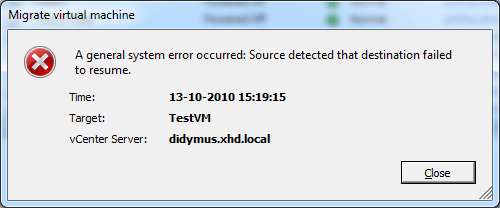
So how to solve the problem?
If you have the luxury of being able to shut your VMs: Shut them, remove the VMs from inventory, remove the NAS mounts from your hosts, then reconnect the NAS mounts (and this time using the exact same mounthost name!). After that, you can add the VMs back to your environment and start them again.
If shutting your VMs is not that easy, you could consider creating new NAS mounts (or find some other storage space), and use storage VMotion to get your VMs off the impacted NAS mounts. Then remove and re-add your NFS stores and use storage VMotion to move the VMs back again.
In my testlab I created an additional NFS mount, this time on both nodes using the same name (FQDN in this case):
[root@Terrance ~]# esxcfg-nas -l

nas01_nfs is /nfs/nas01_nfs from xhd-nas01 mounted

nas01_nfs02 is /nfs/nas01_nfs02 from xhd-nas01.xhd.local mounted
[root@Phillip ~]# esxcfg-nas -l
nas01_nfs is /nfs/nas01_nfs from XHD-NAS01 mounted
nas01_nfs02 is /nfs/nas01_nfs02 from xhd-nas01.xhd.local mounted
And you can see this time the device IDs really ARE equal:
[root@Terrance ~]# vdf -h /vmfs/volumes/nas01_nfs*

Filesystem            Size  Used Avail Use% Mounted on

/vmfs/volumes/22b2b3d6-c1bff8b0

                      922G  780G  141G  84% /vmfs/volumes/nas01_nfs

/vmfs/volumes/5f2b773f-ab469de6

                      922G  780G  141G  84% /vmfs/volumes/nas01_nfs02
[root@Phillip ~]# vdf -h /vmfs/volumes/nas01_nfs*
Filesystem Size Used Avail Use% Mounted on
/vmfs/volumes/eeb146ca-55f664e9
922G 780G 141G 84% /vmfs/volumes/nas01_nfs
/vmfs/volumes/5f2b773f-ab469de6
922G 780G 141G 84% /vmfs/volumes/nas01_nfs02
After a storage VMotion to this new NFS store the VM VMotioned without issue… Problem solved!
Breaking VMware Views sound barrier with Sun Open Storage (part 2)
It’s been months since I performed a large performance measurement using the Sun Unified Storage array (7000 series) in conjunction with VMWare View and linked clones. Not much has been done with the report, not by me, not by Sun, not by my employer.
So now I have decided to share this report with the world. In essence it has been a true adventure “how to cram as many View desktops (vDesktops) into an array as small and cheap as possible”. The Sun 7000 series storage is built around the ZFS filesystem, which can do amazing things when used right. And linked clone technology appears to be a perfect match to the ZFS filesystem when combined with Read and log optimized SSDs. Combined with NFS, the “sound barrier” was broken by not needing VMFS and all of its limitations when it comes to using more than 128 linked clones per store. Instead, we did hundreds even nearing a thousand linked clones per store!
In the end, we managed to run over 1300 userload-simulated vDesktops without noticable slowness / latency. Then the VMware testing environment ran out of physical memory and refused to push further. To the Sun storage we had a sustained 5000-6000 WOPS at that time, which the ZFS filesystem managed to reduce to no more than 50 WOPS to the SATA disks. Too amazing to be true? Well, read all about it:
For the faint hearted, the excerpt can be download from here:
Performance Report Excerpt Sun Unified Storage and VMware View 1.0 (713 KB)
Or read the full-blown report here:
Performance Report Sun Unified Storage and VMware View 1.0 (4.06 MB)
vSphere 4.1 and virtual disk names
I just spotted something that had not occurred to me yet… A small new detail in vSphere 4.1 (or I just missed out on it previously)… VMware has had this “problem” for a long time: If you added a second virtual disk to a virtual machine on a datastore different from the location of the first virtual disk, vSphere used to name that new virtual disk the same as the base disk. Well not any more!
I noticed in vSphere 4.1 that this is no longer true. A second disk created on a separate datastore gets its name from the virtual machine (like it used to be), but with a trailing “_1” in the filename.
For a long time backup vendors have been battling with this “issue” because the backup software ended up with two virtual disks that were both named the same… In a lot of environments that meant manual renaming and remounting second and third disks to VMs in order to get proper backups without having to guess which disk goes where.
Amazing that these things all of a sudden get fixed now that VMware has its own backup solution 😉
Posted in VMware |
Tags: Backup, naming convention, Virtual Backup, virtual disk, vmdk naming, vSphere 4.1 |
1 Comment »
vCenter 4.1 and CPU usage
I have a very tiny testing environment, which I just upgraded to vSphere 4.1. I chose to reinstall the vCenter server on a 64bit Windows 2003 VM with a local SQL express installation, having only 1GB of memory and a single vCPU. I know this is against best practice, but I like to follow the much older best practice to “start out small” like VMware has been (and still is) preaching about. So I started out small. Although 1GB of memory is not even really small for my measures 🙂
I quickly noticed that the VM was running fine at first, but soon started hogging CPU resources, and was hardly responsive. vCenter 4.1 could not have grown to such a resource eater I figured. So I checked to settings of the Windows server, and I changed the swapfile size to a fixed value (the system managed size can have impact when growing).
To have a look at the SQL settings, I decided to download and install the Microsoft SQL Server Management Studio Express tool, which can be obtained here.
Looking into the settings, I noticed that SQL is set to take all memory it can (the max value was set at 2TB I believe). I changed that setting to 768MB, meaning SQL can use 768MB as a maximum, leaving 256MB for “the rest” (read: vCenter and VUM). If needed you might fiddle with this setting.
After changing these values, vCenter began to respond properly. Sometime the VM gets really busy, but quickly returns to “normal” behaviour; no more “stampede”.
Take care: This is in no way meant for a full-blown production environment. Always follow VMware’s best practices… But if you have a test environment which is really REALLY small, consider these changes to extent the life of your single socket, dual core ESX nodes by a year (or possibly two) 🙂
No COS NICs have been added by the user – solved
Now that I am busy setting up UDA 2.0 (beta14) for a customer to be able to reinstall their 50+ VMware servers, I stumbled upon this message. The install would hang briefly, then proceed to a “press any key to reboot” prompt. Not too promising…
After searching the internet I found a lot of blog entries on exactly this error. I could not find any useful hints or tips that would solve my problem; I have been checking the disk layout over and over again, to make sure no mistakes were made there. I was starting to pull my hair out, because it did work previously.
Then I started thinking; the customer in question has multiple PxE servers in the same network, and special DHCP entries were created for all vmnic0 MAC addresses, so that option 66 and 67 could be set to point to the UDA appliance. I think their DHCP server denies DHCP to any MAC address unknown to it, because right before the “press any key to reboot” I saw something passing in the line of “unable to obtain a dynamic address”. I figured in the initial setup, the kickstart part tries to get a DHCP address using the Service Console virtual NIC (with a different MAC address each time you reinstall). So I tried to alter the “Kernel option command-line” from this:
ks=http://[UDA_IPADDR]/kickstart/[TEMPLATE]/[SUBTEMPLATE].cfg initrd=initrd.[OS].[FLAVOR] mem=512M
Performance impact when using VMware snapshots
It is certainly not unheared of – “When I delete a snapshot from a VM, the thing totally freezes!“. The strange thing is, some customers have these issues, others don’t (or are not aware of it). So what really DOES happen when you clean out a snapshot? Time to investigate!
Test Setup
So how do we test performance impact on storage while ruling out external factors? The setup I choose was using a VM with the following specs:
Posted in VMware |
Tags: delete snapshot, ESX, performance, snapshot, VM freezes, VMware |
28 Comments »


 LinkedIn
 Twitter